In this post, I will write on how to enable reference search in Backoffice of SAP Commerce. Out of the box, the Advance Search of SAP Commerce does not have reference search for its attributes. If you click the three dots for one of the property in Advance Search, it does not open up the reference search.
For instance in the below screenshot we have clicked on the three dots of Delivery Address attribute, but it is showing a dropdown of all the instances of Delivery Addresses instead of a reference search.

Therefore, to enable reference search for the Delivery Address attribute of AbstractOrder, we need to update <our_extension>-backoffice-config.xml file. Update the file to look like this:
<context type="AbstractOrder" component="advanced-search" merge-by="type" parent="GenericItem">
	<advanced-search:advanced-search>
		<advanced-search:field-list>
			<advanced-search:field name="deliveryAddress" selected="false">
				<advanced-search:editor-parameter>
					<advanced-search:name>referenceAdvancedSearchEnabled</advanced-search:name>
					<advanced-search:value>true</advanced-search:value>
				</advanced-search:editor-parameter>
			</advanced-search:field>
		</advanced-search:field-list>
	</advanced-search:advanced-search>
</context>
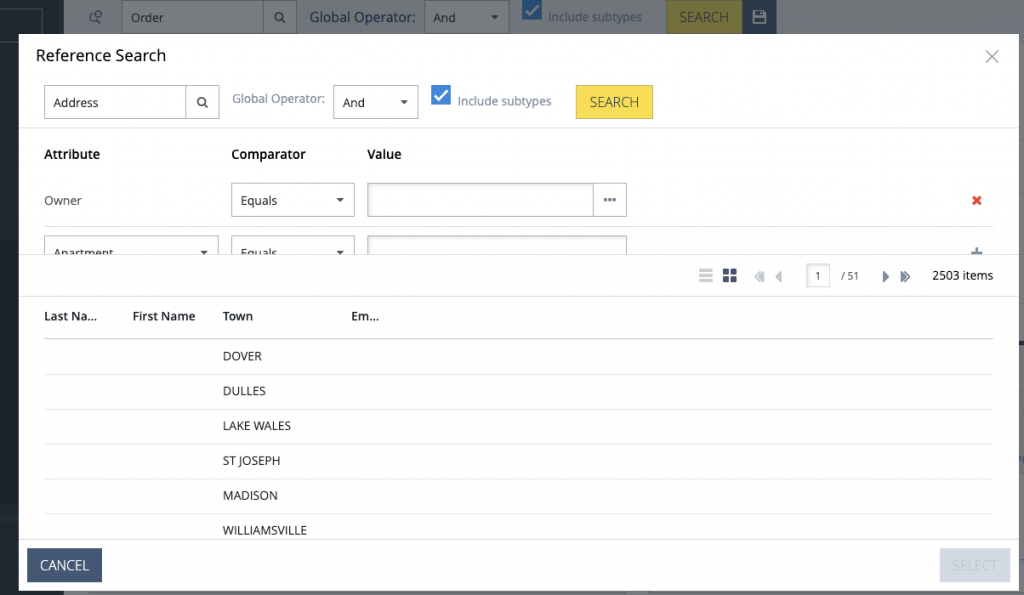
As can be seen, we have added the property “referenceAdvancedSearchEnabled”. By adding this property, the reference search is available for this attribute in Advance Search. It looks like this now when the three dots are clicked on Delivery Address attribute.
10 Comments
Ansar · April 14, 2020 at 6:50 am
How to enable reference search for the Shipping Address attribute of B2B Unit –> Address Tab.(Hybris 1905)
waqasaslam · May 1, 2020 at 8:37 pm
Hi Ansar,
For this, you would need to change two things in the code snippet I provided:
1. Change type to B2BUnit
2. Change advanced-search:field’s name to the name of the attribute you want to add a reference search on
Appu · May 11, 2020 at 10:07 am
How to add a custom attribute to this advances search in backoffice?
waqasaslam · May 11, 2020 at 7:03 pm
It should be the same as how you would do it for OOTB attributes. Do you see any errors when doing it this way?
Ashutosh Mishra · May 16, 2020 at 5:37 pm
Hi Waqasaslam
How to get only “active” delivery addresses in reference search.I tried below thing for editor area but not working
referenceSearchCondition_active
True
waqasaslam · May 19, 2020 at 7:10 pm
I have never tried it like this. Does it give you any errors/warnings?
If it’s reference search, you can always use advanced search to get only the active addresses.
Chin · May 25, 2020 at 4:53 am
When i open reference search i am not able to scroll . There is no scrolling possible for the result section . How to add scrolling in the result section? I have a larger no of records in it when i search.
Mohd · July 23, 2020 at 1:34 pm
Hi Waqas,
How to enable the same search popup inside editor area. let’s say go to B2BUnit, and click on Address tab.
there we find options to select shipping address and billingAddress. When I click on button with 3 dots, it is not popping up the search.
Dileep · August 17, 2020 at 12:21 pm
How to Remove Owner (default Option) from the advanced search
Rupesh · April 22, 2021 at 3:21 pm
Hi Waqas,
Let’s say I want to search B2B Unit which has Delivery address with Postal Code as 1234 with Advanced/Simple Search.
How to achieve this?