HSQL is the default database for SAP Hybris (SAP Commerce). There are many third-party softwares that can do this. For example, Razol SQL. However, these are overkill for the purpose of just viewing the DB and doing simple actions.
In this post, I will show how to view the HSQL GUI without installing any third-party software. Below are the steps of achieving this:
Go to the dbdrivers directory from the command line:
cd hybris/bin/platform/lib/dbdriver/
Then execute the following command to open HSQL Database Manager:
java -cp hsqldb-2.3.4.jar org.hsqldb.util.DatabaseManagerSwing
Now, a GUI for HSQL Database Manager. From here, we will specify the HSQL db to connect to.
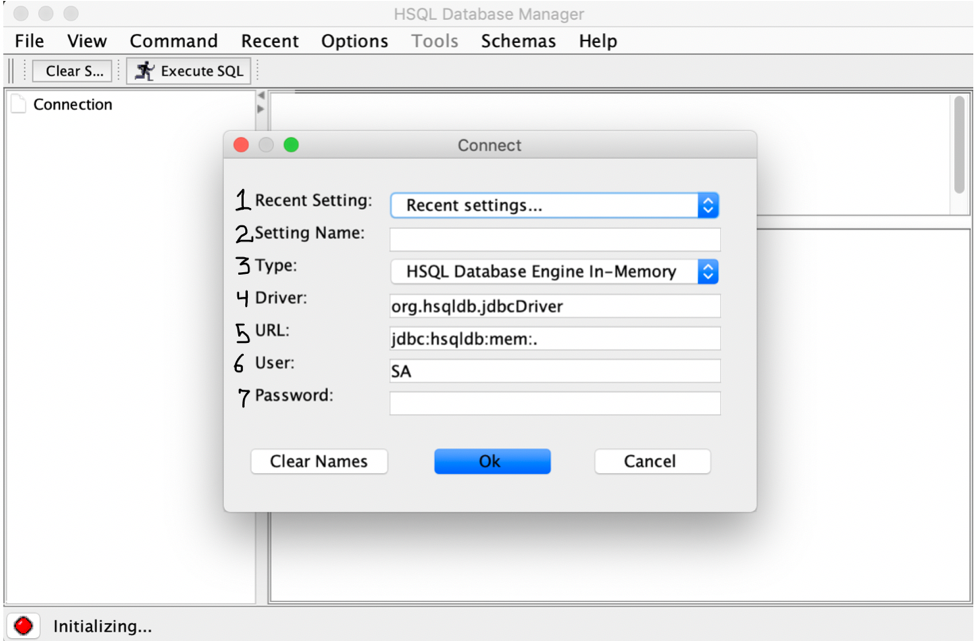
- Recent Setting: This is a list of your recent HSQL connection settings.
- Setting Name: Give the name of your db setting so that later on we can select it instead of setting it up every time.
- Type: Choose HSQL Database Engine In-Memory as the type
- Driver: Write org.hsqldb.jdbcDriver
- URL: Give the path to your hsql db file. In the case of SAP Hybris, this file lives in this location: hybris/data/hsqldb/mydb. So the URL will look something like this: jdbc:hsqldb:file:/<path-to-hybris-directory>/hybris/data/hsqldb/mydb
- User: Give the username for the db. By default, it is SA
- Password: Give the db’s password. By default, it has none.
Once you have setup the connection’s settings and clicked “Ok”, you will be able to see your db. It will look like the following:
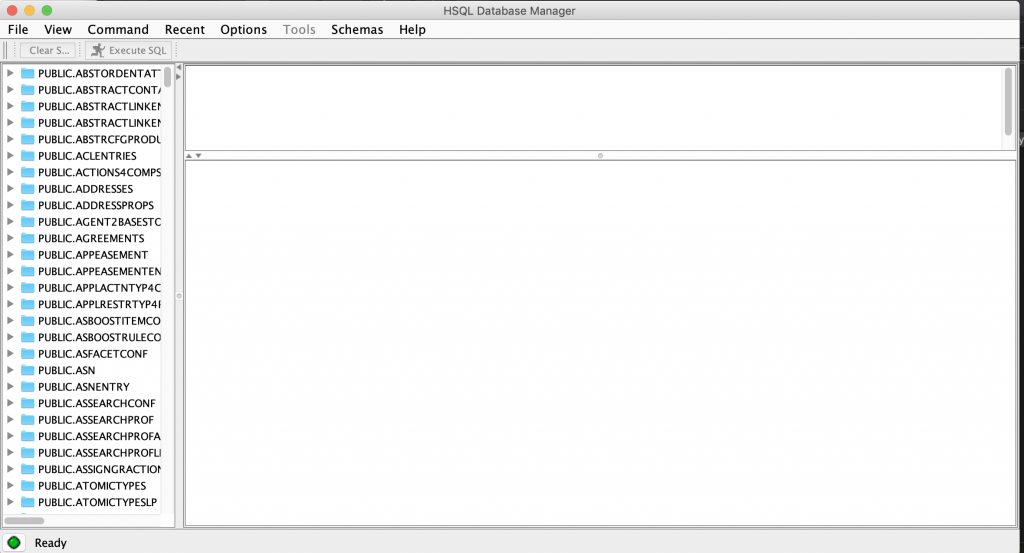
Now you are able to view your HSQL database in GUI without installing any third party softwares. Enjoy!
0 Comments